TL;DR — generated with AI
You uploaded a new version of a PDF but the website still shows the old one. That’s because between your CMS and the person downloading the file, there are up to five caching layers (browser, CDN, reverse proxy, application cache, object cache) that each independently decide whether to serve fresh content or a stored copy.
Your options: agree on shorter TTLs with your IT team, version your files with new filenames, use vanity URLs with redirects, or ask someone to purge the caches manually. If only you see the old version, try a hard refresh. If everyone does, start suspecting the CDN.
You published the 2025 annual report last week. Everything looked great. Then someone from finance calls to let you know there’s a typo on page 3. Or worse, a number is wrong in one of the tables.
No problem. You open the corrected PDF, upload it to the CMS with the same filename, and hit save. Done. You grab a coffee and check the live site just to be sure.
The old version is still there. Typo and all.
You clear your browser history. Still there. You try a different browser. Still there. You ask a colleague to check on their phone. They see the typo too.
If you’ve ever found yourself in this exact situation, staring at a screen and wondering if the internet is personally conspiring against you, you’re not alone. I’ve seen this question come up dozens of times over the years, from marketing managers to content editors to fellow developers (myself included, more than once).
The frustrating truth? Between you uploading that corrected PDF and someone in Sydney downloading it, there are multiple systems designed to be helpful. They save you money by remembering old content.
Let me show you what’s actually happening.
The caching layers
Think of caching like a library system with branches across the country. The main library (your website) has the updated annual report. But every branch library made photocopies of the original version when it first came out, and they’re still handing those out to anyone who asks. They won’t check with the main branch for a new version until their copy expires, which could be days or even a year away.
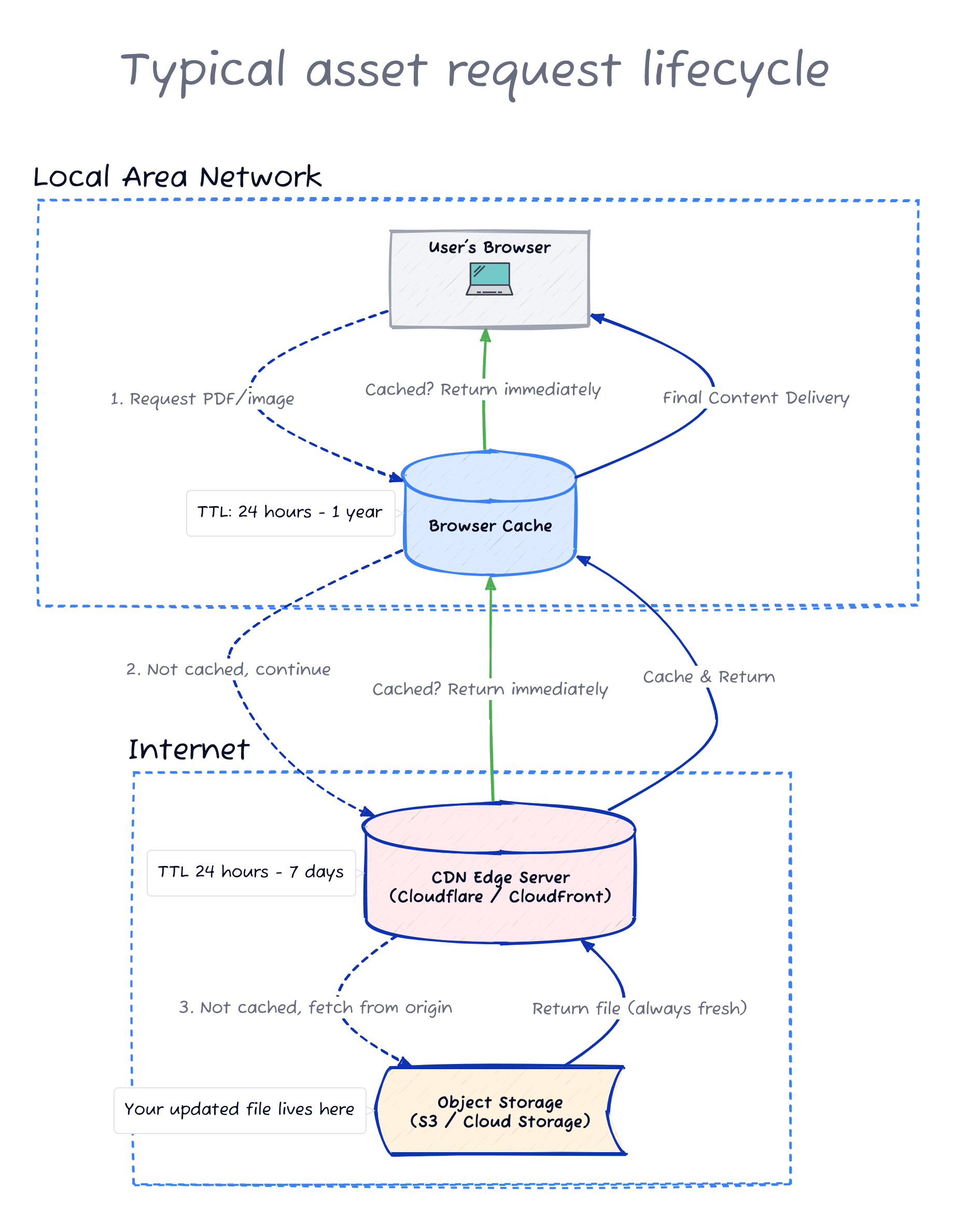
When someone visits your website and clicks “Download Annual Report”, that request doesn’t go straight to your website. It bounces through several layers of caching systems, and any one of them might already have the old PDF stored and ready to serve.
Each one independently decides whether to serve the fresh file or the cached version it already has, based on its TTL (time to live, basically an expiry time for cached content).

Layer 1: The browser cache
Every time you download a file, your browser quietly saves a copy. Next time you visit the same URL, it thinks: “I already have this. Why bother downloading it again?”
This is genuinely useful. It makes websites faster and saves bandwidth (and a bit of the planet). The problem is that your browser has no way of knowing you’ve uploaded a corrected version. It just sees the same URL and assumes nothing has changed.
This caching system provides a speedy experience for users who have visited the site before. In a worst-case scenario where the user downloaded a 500MB PDF from a server that was in a different continent, this alone is saving a few good minutes of loading time.
Layer 2: The CDN (content delivery network)
This is often where the real trouble lives.
Most modern websites use a CDN. Services like Cloudflare, CloudFront, or Fastly. These work by keeping copies of your files on servers scattered around the world. When someone in Perth requests your annual report, they get it from a server in Perth instead of waiting for it to travel from wherever your main server lives.
Faster for users. Cheaper for you. Brilliant, until you need to update something.
As opposed to the browser cache, this caching system focuses on users who haven’t visited the site before. It also helps reduce the load on your main server so that it can handle more traffic.
But what if you updated a page instead of a PDF?
For most static files like PDFs and images, the journey is relatively short: browser cache, CDN, and then straight to file storage. Two caching layers, maybe three.
Content pages have it worse.
When someone visits your “About Us” page or a blog post, the request has to travel through even more systems before it reaches the actual content. Your text lives in a database, not a file. It needs to be fetched, assembled into HTML, wrapped in your site’s template, and sent back. That’s computationally expensive, so naturally, someone thought that a single layer of caching wasn’t enough.
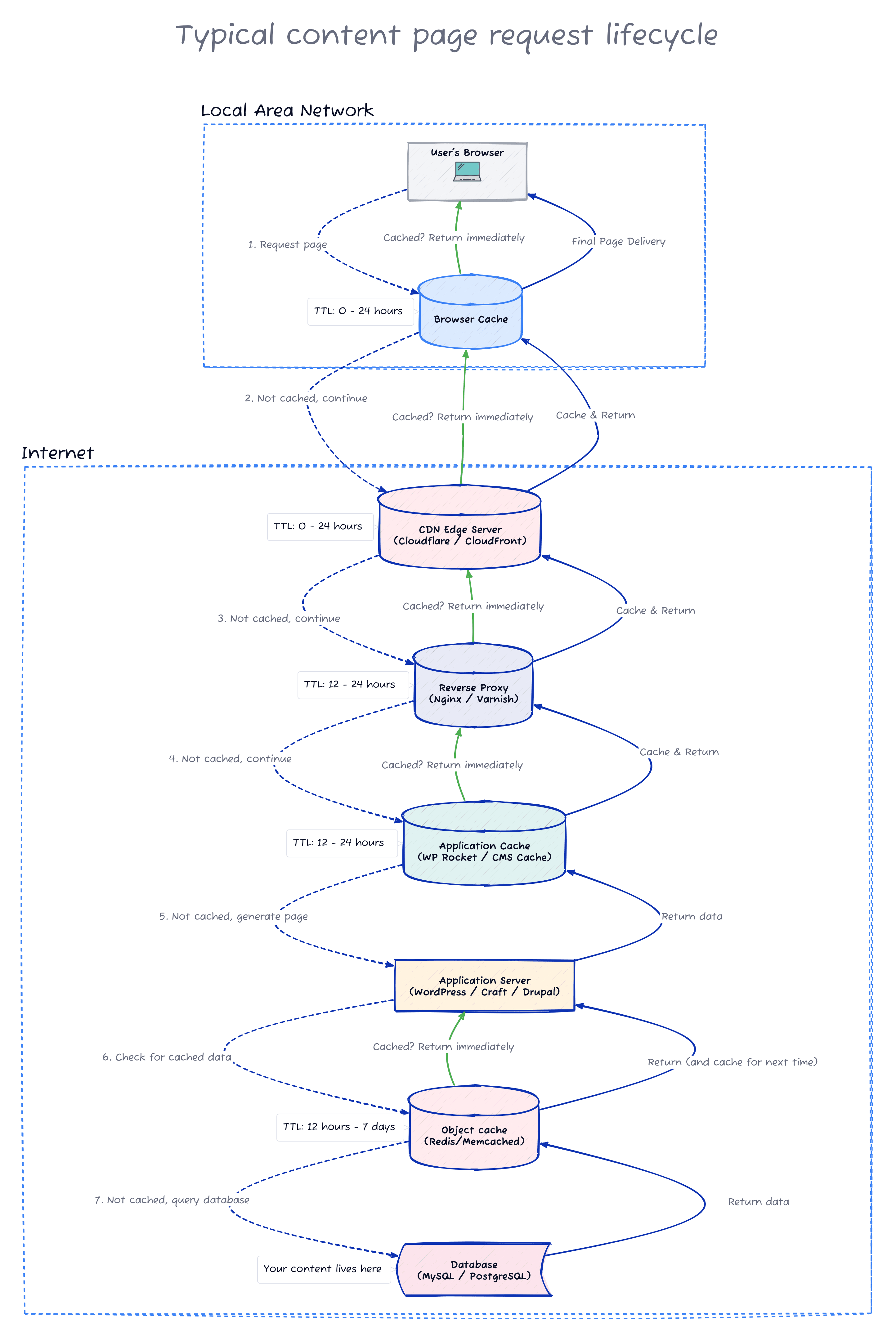

If you’ve ever updated a headline or fixed a typo in your website copy and wondered why it’s still showing the old text in some parts of the site, these are the extra layers responsible.
Layer 3: The reverse proxy
Sitting in front of your web server is often a reverse proxy. Think of it as a traffic controller. Someone requests the “About Us” page, and the reverse proxy knows which application can handle it. It forwards the request, gets the response, and sends it back. Simple enough. But reverse proxies can also cache the responses they receive, which is where the trouble starts.
They’re usually handy when there’s no CDN caching the HTML content (and there are valid reasons for that). They take load off your main server so the system can handle more visitors.
Layer 4: The application cache
Your content management system probably has its own caching layer too. WordPress has plugins like WP Rocket or W3 Total Cache. Craft has built-in template caching. Drupal has a whole ecosystem of caching modules.
This layer typically stores a pre-generated HTML version of each page in a folder on your server. Next time someone requests the same page, the CMS reads that static file instead of querying the database and assembling everything from scratch.
Here’s where it gets frustrating. You update the title of a blog post, the CMS refreshes the cache for that post, and everything looks fine. But that post is also linked on your homepage, in your sidebar, maybe in a “Related Articles” section on three other pages. The CMS often doesn’t know it needs to update those too. So you’ve got a fresh article page and a stale everything else.
Layer 5: The object cache
This one sits even deeper in the stack. Object caches like Redis or Memcached store frequently accessed data in memory. This might be database query results, user sessions, or chunks of pre-rendered HTML. The application checks the cache first and only does the expensive work if the answer isn’t already there.
Databases are often the slowest part of a web application. Caching query results in memory allows the application to generate pages much faster.
So, how can you avoid stale content?
Caching systems use the URL as the identifier. Same URL means same file, as far as they’re concerned. They won’t bother checking for new content until their TTL expires. Which brings us to a few options:
Agree on TTLs with your IT and content teams. If PDFs get replaced often, everyone should be comfortable with the benefits and trade-offs of a shorter TTL. This is always a conversation worth having, even if you think you’ll never need it.
Everything can be automated… at a cost. The more layers of caching your system has, the more sophisticated the solution needs to be. Caches closest to the application layer are usually the easiest and cheapest to purge when content updates. The tricky part is clearing all five layers in the right order. Each system works independently and takes different amounts of time to clear. If the CDN gets purged first but the application still has stale content, the CDN will cheerfully cache the old version again. Ask me how I know.
Consider versioning your files. If you control all the places linking to your PDF, you can get away with uploading annual-report-2025-v2.pdf instead of replacing the original. The catch: anyone with the old link will still get the old version, or a 404 if you delete it.
Consider vanity URLs with a redirect. This is often the most cost-effective solution. Create a single vanity URL like mysite.com/annual-report-2025/ that redirects to the actual file. Share only the vanity URL. When the PDF needs updating, upload the new version with a different filename and update the redirect. No cache purging required, no broken links.
And if none of that works, there’s always someone on the IT team who can purge one or multiple caches for you. Bring them a coffee (or a coffee emoji!), you’ll make their day.
So which cache is causing your problem?
Could be any of them. Could be all of them.
If only you see the old version, it’s probably your browser cache. Try a hard refresh with Cmd + Shift + R on Mac or Ctrl + F5 on Windows and see if you can call it a day.
If everyone sees the old version, start working outward. For PDFs and images, the CDN is usually the culprit. For content pages, try clearing the CMS cache first (the one thing you might actually have access to). If that doesn’t help, the reverse proxy or object cache might be holding onto stale data. Time to call in reinforcements.
If some people see the new version and others don’t, that’s classic CDN behaviour. Different edge servers, different cache states. Some unlucky users are hitting a server that hasn’t expired its cache yet.
None of this complexity was designed to frustrate you. Quite the opposite: thanks to caching we get faster page loads, lower server costs, and better user experience. The side effect is that correcting a typo in a single PDF becomes an exercise in distributed systems.
The questions worth asking aren’t “why isn’t this working?” but rather: “Can we set up automatic cache purging for media files?” or “What’s our process when we need an urgent content update?” Those are conversations worth having with whoever manages your infrastructure. Ideally before someone spots the next typo.